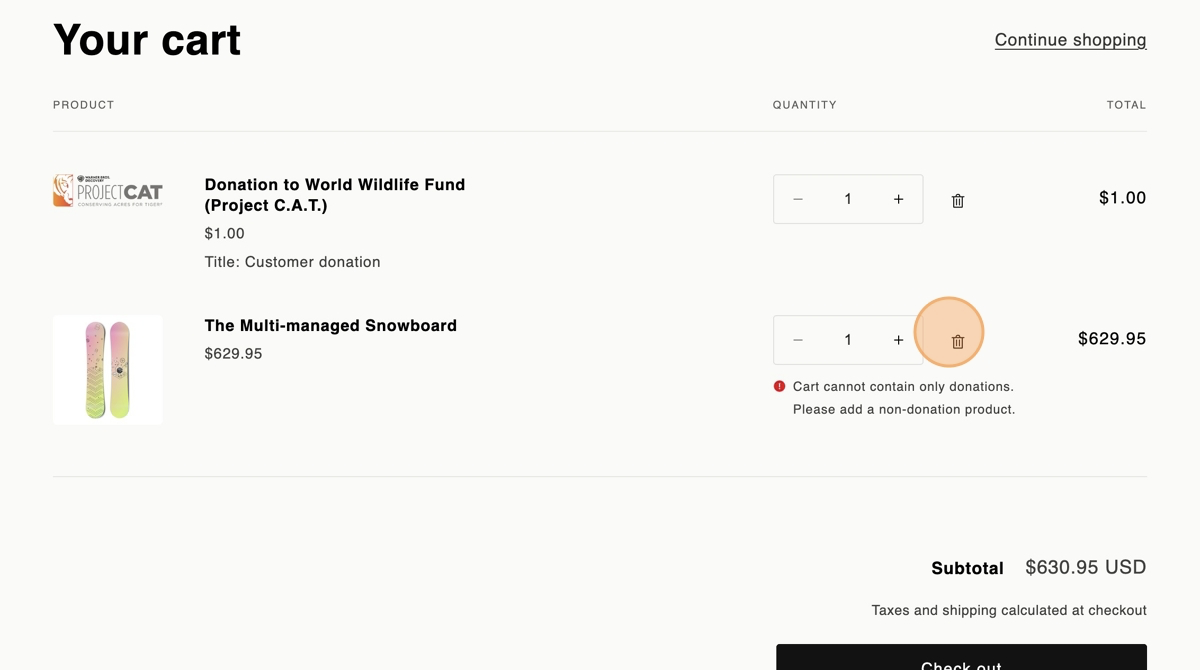
You can now activate a Checkout Rule for your shop that'll prevent users in your shop from only having donations in the cart/checkout!
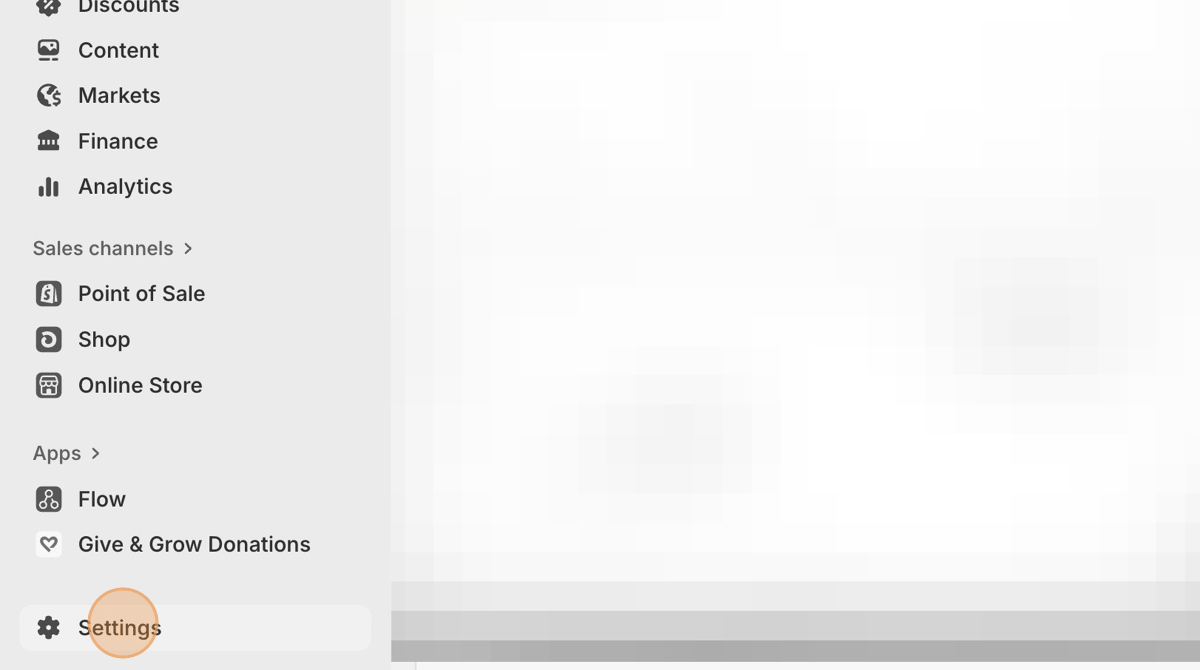
1. Go to Settings
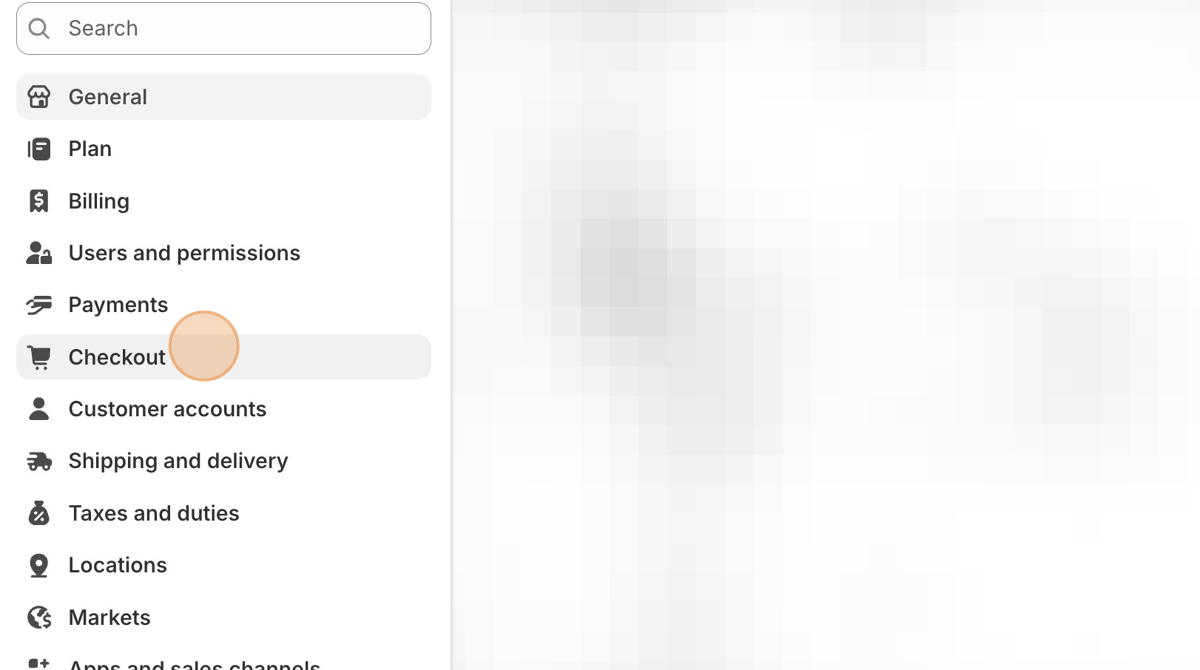
2. Go to Checkout
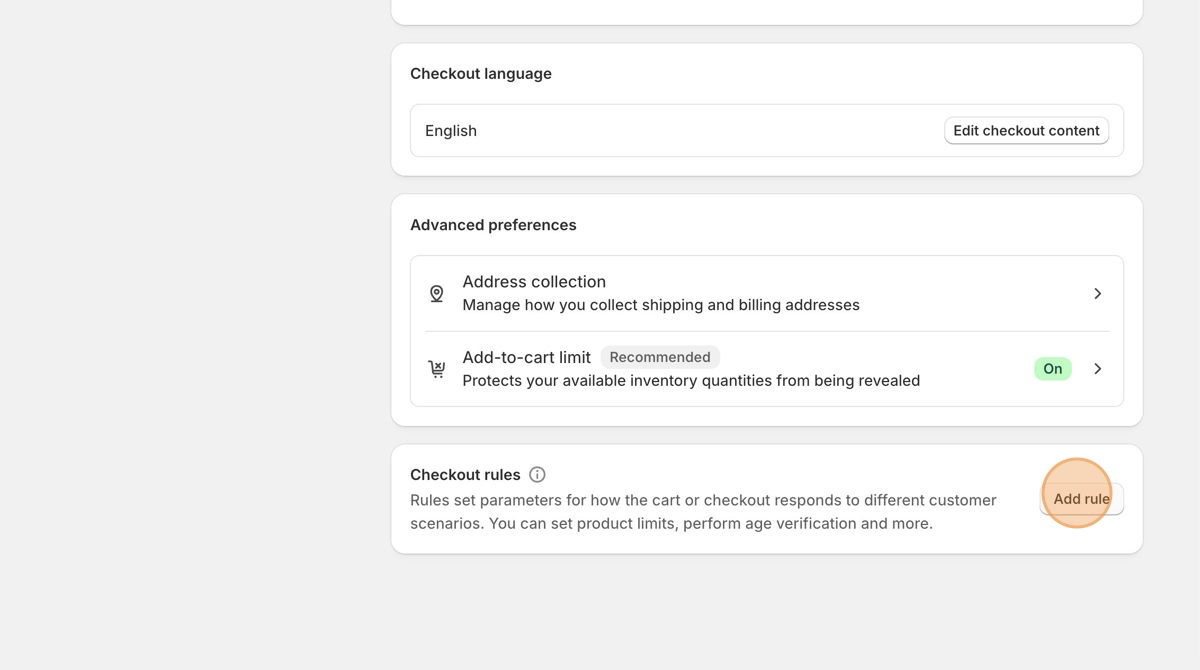
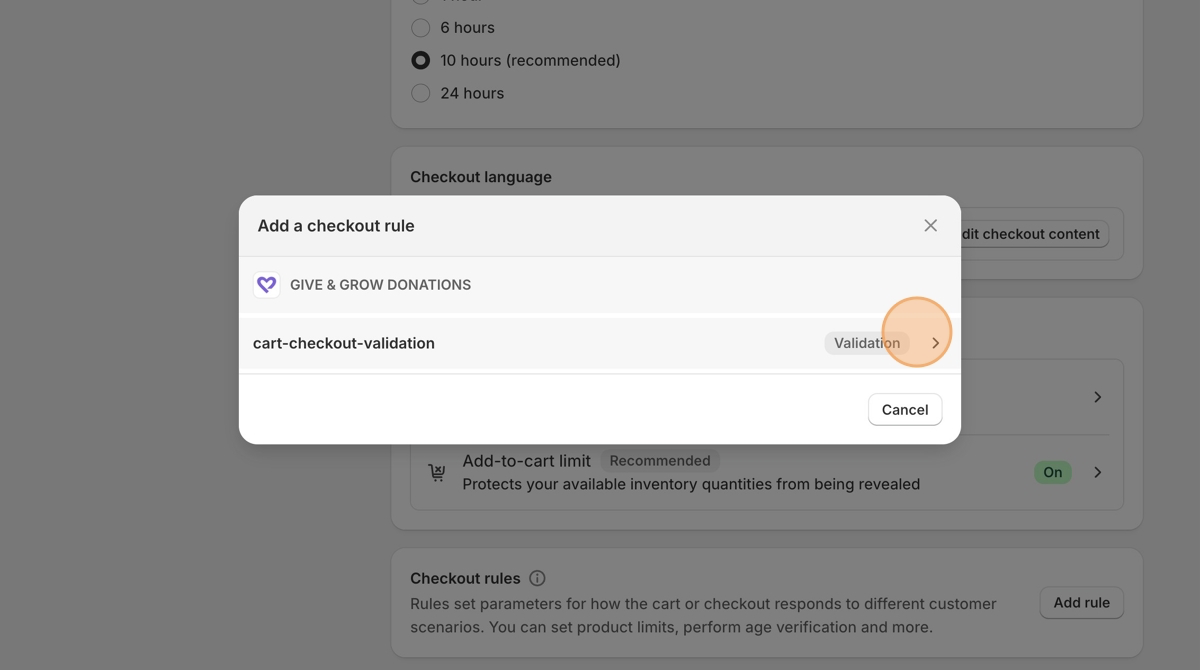
3. Scroll to the bottom, and click Add Rule
4. Click the Give & Grow Donations checkout rule named "cart-checkout-validation"
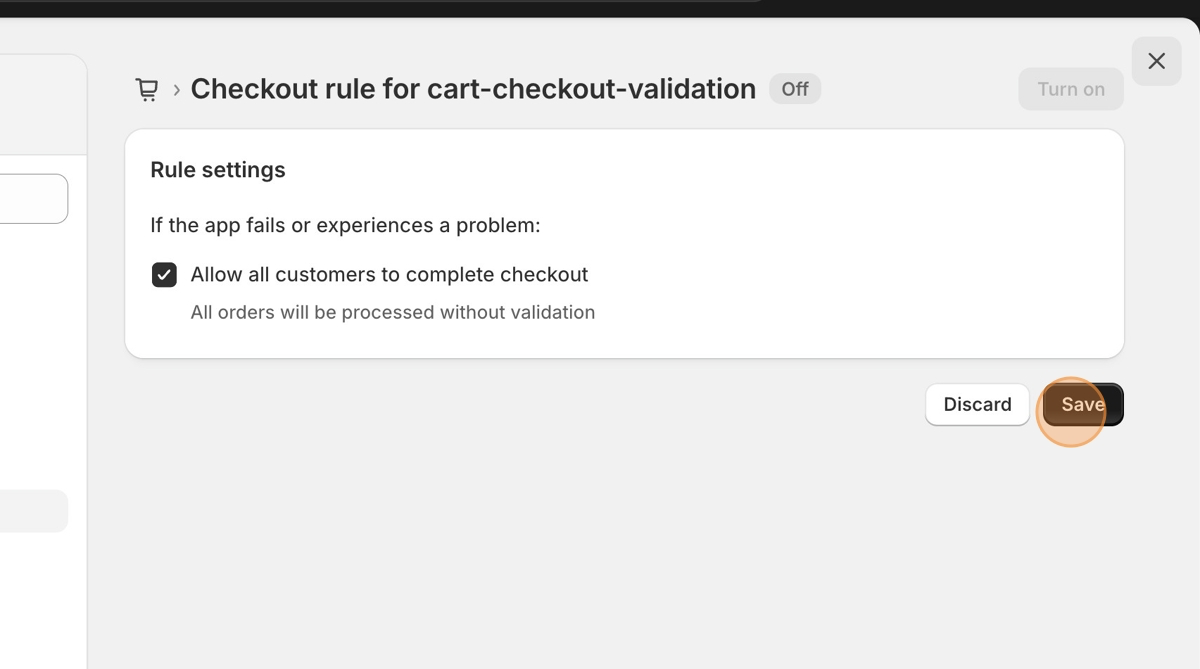
5. On the next screen, "Rule settings," make sure "allow all customers to complete checkout" is checked. This will prevent any problems with Give & Grow or other add-ins from stopping your checkout flow. Click Save
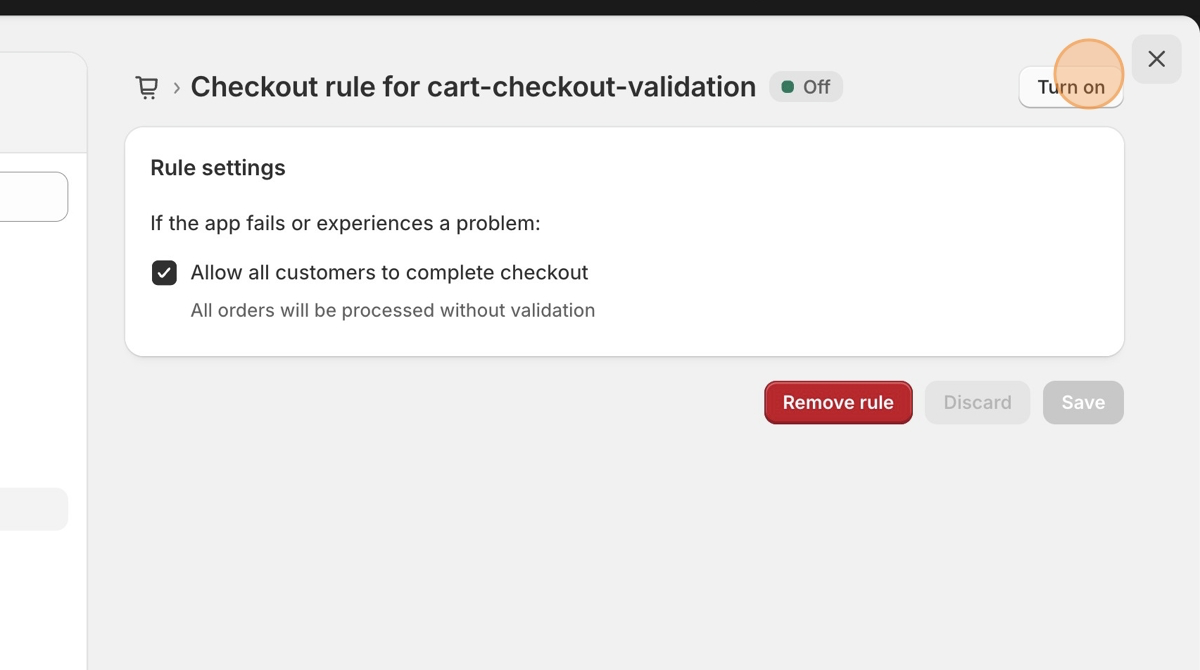
6. Click Turn on!
Testing the checkout rule
1. Go to your shop
2. Add a non-donation product, then a customer donation
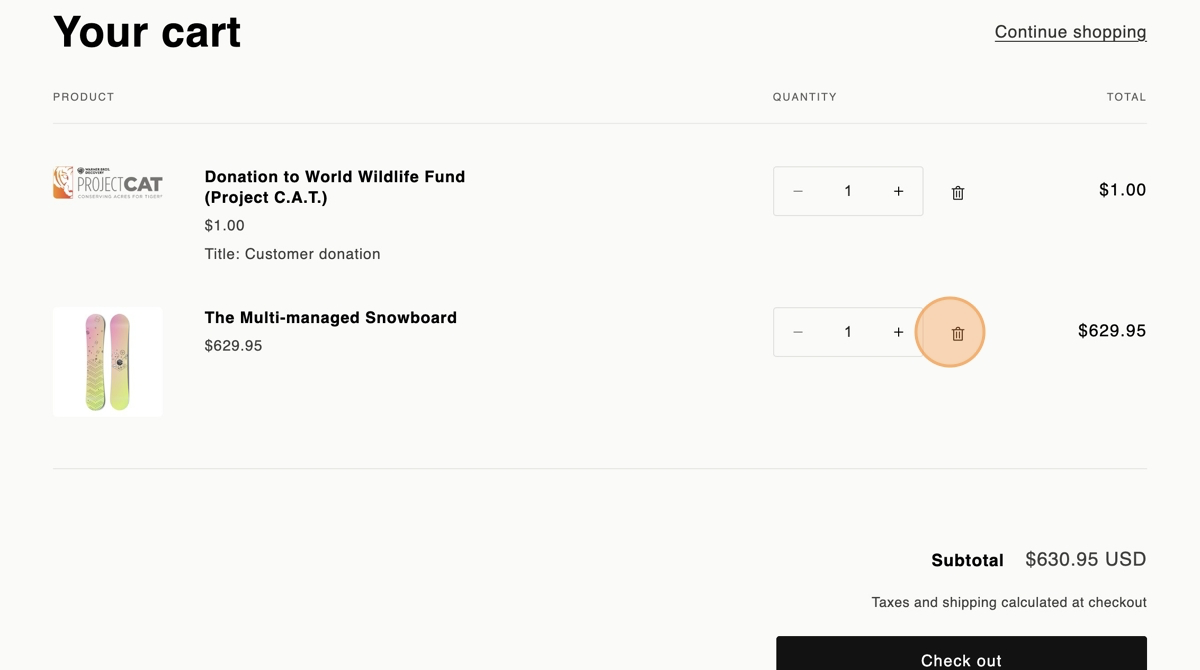
3. Try removing the non-donation product to leave the customer donation as the only item in the cart/checkout. If everything is working as expected, you will see a warning like the one in the snowboard row below: "Card cannot contain only donations. Please add a non-donation product."